ADFS authentication and LastPass

I had been frustrated with logging into an environment with ADFS authentication as Chrome does not support ADFS.

My colleague, Daniel Karlsson, gave me the tip that Firefox does work with ADFS. Much to my pleasure, it turned out that LastPass and Firefox are a wonderful combination for logging into these environments. Thanks again!

So, I have updated my post Tips for logging into multiple SharePoint Online environments, which covered LastPass, multiple sessions, multiple browsers, etc.

firefox_adfs

SharePoint Connections 2013 Recap #SPCon13

Phew! Barely home long enough to catch my breath and write a quick post about SharePoint Connections 2013! It was great to meet up with old colleagues and friends alike, as well as make new connections.

So much happened and I talked to so many people, I’m just going to sum up the highlights – in no particular order!

I’m really sorry I didn’t get to see my colleagues’ session on Once You App, You Don’t Go Back, which was done by Daniel Sörlöv and Alexander von Malachowski. They were kind enough to show me the speakers room (it really wasn’t as impressive as it sounds) … so I brought all the speakers some fresh stroopwafels.

2013-11-20 16.22.52

Benjamin Niaulin

Benjamin Niaulin‘s session on the Search Content Webpart was just hands down awesome. He’s such a fun, passionate guy that you want to pay attention to him and laugh along with him. Plus, he did a little dance to illustrate how continuous crawl in SharePoint 2013 works. For this reason, I will never forget how continuous crawl actually works.

One of my notes from his session is a direct quote:

correctanswer

I already thought Benjamin Niaulin was pretty cool, because his blog post on Step by Step: Create a SharePoint 2013 Composed Look is my most referred-to resource for SharePoint 2013 design. Seriously, though: he’s even cooler in person.

Martin Hatch

I’d never seen or met Martin Hatch before, but his session on Dude, Where’s my Search Scopes – Walkthrough of the new Search Capabilities in SharePoint 2013 was excellent.  He did a wonderful job of showing us the different functionality and I do hope to see him again at more sessions.

Joel Oleson

I saw both of Joel Oleson’s sessions.

SharePoint 2013 Mobile Strategy and Responsive Web Design

The part about responsive vs. adaptive design was fantastic and I’ll definitely be looking into using this more.

Also, he got into the support for mobiles for SharePoint 2010 and SharePoint 2013:

mobiledevices

Upon seeing this, I promptly tried to find all of these for Android:

  • Newsfeed: is coming, but unsure when
  • Office Mobile App: awesome, works wonderfully!
  • SkyDrive Pro: couldn’t find it in the app store, but Office Mobile App was great anyway
  • Office Web Apps: meh, but it worked

SharePoint 2013, Office 365, Yammer and Social Compliance

I loved that he showed multiple videos and pictures within his presentations.

Compliance is like herding cats: 

And… lead the community with subtle movements, don’t try and control everything:

Joel also did a write-up of the event on his blog – he has more interesting pictures than I do: SharePoint Connections Amsterdam Event Recap and Slides #SPCon13

Dan Holme’s governance workshop

I participated in Dan Holme‘s governance workshop on the third day and I’m so glad I did.  Dan is a wonderful speaker and he did a great job of making this session work from both an IT-Pro as well as a business perspective.

I loved how he used the analogy of SharePoint as a sand castle and how he reused this analogy many times throughout the day.

I teach information architecture and occasionally information management. This diagram, which was the core of the morning section, was worth the entire price of the day for me:

definitiontodesign

There were plenty of other useful things throughout the day, but this was definitely the highlight for me.

Galaxy Note 3

I spent a fair amount of the conference playing with my new phone, the Android-based Galaxy Note 3. Yes, I realize it’s more of a tablet than a phone, but that’s ok – I do most of my calling via my Bluetooth Jawbone anyway.

I don’t really use most of the Samsung apps. I find that there is too much bloatware and they just don’t do what I want. However, while playing around, I found an awesome combination: Papyrus + Evernote.

I was able to use Papyrus to write notes on the screen, even to take a picture of a slide and then draw all over it. I could then export the entire note to Evernote, which can generally interpret my handwriting and make it searchable! At least, when I wrote somewhat neatly.

agnostic

The thing is, I want an even bigger screen now. Something like the Galaxy Note 10.1 would do it, I think. That 2560×1600 pixel resolution looks pretty awesome.

Wrap-up

There you have it, my summary of SharePoint Connections. I learned a lot, but the most valuable part was the networking and getting to reconnect with old colleagues and friends.

Hopefully next year I’ll be wearing a speakers shirt!

Update: SharePoint Saturday Stockholm 2014

SPSStockholmAs one of the organizers for SharePoint Saturday Stockholm on 25 January 2014, I wanted to give you a quick update via my own personal blog.

Event

The very first SharePoint Saturday Stockholm (SPSSthlm) will take place on Saturday 25 January 2014 at the World Trade Center in downtown Stockholm!

The entire event is sponsor-driven and is free to all attendees. SharePoint has a very rich community surrounding it; this is yet another example of that.

We will have space for approximately 180 attendees.

Website

We have a beautiful, shiny new website, built by Matthias Einig: http://www.spsstockholm.com

Many thanks to the SharePoint Saturday Events site where we are still listed as well!

Organizers

The event is being organized by three SharePoint specialists in the Stockholm area:

Speakers

While we already have a number of wonderful speakers signed up, the call for speakers remains open until 30 November. If you’re interested in speaking, please submit your session information before the 30th. For more information, click here.

Social

In order to spread the word we need your help, so please click this and tweet about it.
Please follow SPSSthlm on Twitter @spssthlm and use #spssthlm as hashtag.

Also, feel free to blog! My thanks go out to the following people who have already done so:

More information?

I realize the information provided until now is fairly sparse. However, from the beginning of December, things will start to pick up!

Keep an eye on our Twitter feed or the SharePoint Saturday site for more information!

URL to set page layouts/site templates

I recently encountered a SharePoint environment based on the publishing site template where the administrators had removed the option to set the allowed/default page layouts and site templates for a site. Normally, this is found under “Site Settings -> Look and Feel -> Page layouts and site templates”, but the option was gone.

It turns out that you can still access the page, even if the link isn’t there – you just need to know the URL:

/_Layouts/AreaTemplateSettings.aspx

If you want to set the page layouts and site templates in the normal way, via the UI, see Set the Preferred Page Layouts and Site Templates on the Microsoft Office site.

Wireframing SharePoint with Axure and Balsamiq

I was recently asked to make mockups for a new SharePoint environment so that the client had a better idea of what we were talking about.

What are wireframes? 

If you’re reading this article, I’m going to assume you already know what wireframes are. However, there are so many misconceptions and different definitions that I’d really like to make my position clear.

The emphasis in the following quote is mine.

A website wireframe, also known as a page schematic or screen blueprint, is a visual guide that represents the skeletal framework of a website. Wireframes are created for the purpose of arranging elements to best accomplish a particular purpose. The purpose is usually being informed by a business objective and a creative idea. The wireframe depicts the page layout or arrangement of the website’s content, including interface elements and navigational systems, and how they work together. The wireframe usually lacks typographic style, color, or graphics, since the main focus lies in functionality, behavior, and priority of content. In other words, it focuses on what a screen does, not what it looks like.

Source: Website wireframe @ Wikipedia

Wireframe

A wireframe can take the form of a sketch on a napkin, on a whiteboard, PowerPoint or a program such as Axure or Balsamiq.

When asked to do a SharePoint wireframe, we’re usually most concerned with the main page as this requires the most customisation. At this point, we include elements from:

  • Master page (global layout, top navigation, quick launch, footer)
  • Page layout (page level layout, webparts, field controls)
  • Basic content decisions (which webparts? where? approximately what content will they include?)

As stated above, it is important to keep questions such as fonts, colors and/or graphics out of the question at this point: wireframes are concerned with functionality and basic layout, not design.

Comparing Axure and Balsamiq

It had been so long that I wasn’t even entirely sure what to use anymore.  I’d heard quite a bit about both Axure and Balsamiq, so decided to look into them. I know that some people do use Visio (see Jasper Oosterveld’s SharePoint 2010 Wireframes), but I don’t like using Visio for this purpose.

The best resource I found was Axure vs Balsamiq prototyping by Calvin Pedzai – he does a good comparison of the two products. In his conclusion, he states:

Which one to use is purely situational. Both are supported by strong community-generated components and widgets so the range of work one can do is quite wide. Axure is more expensive and suited for medium-to-large scale projects. Its annonating functionality means that the resulting prototype has useful notes on interactions for developers as opposed to creating seperate documentation. However because Axure RP offers more features than Balsamiq it takes longer time to learn and its HTML prototyping can be time consuming. Balsamiq is for smaller projects and rapid prototyping. Its prototypes are not as interactive as Axure RP but PDF mockups can be created. Very small learning curve and its lack of features is not such a show stopper either.

I’ve used Axure previously and it’s a powerhouse of a product. Particularly masters, which allow you to create things like navigation which are repeated over multiple pages and the ability to add functionality such as onClick are wonderful. You can create an entire prototype and create HTML pages which can be shared with the client. I also really like the functionality that allows you to comment on elements and create a specification from these comments in Word. Axure brings wireframes to a whole new level. However – I think it’s overkill for a lot of wireframing situations.

After having used Balsamiq, I can say it’s very simple. Occasionally, it feels too simple after having worked with Axure, but the simplicity pays off when I just need to make wireframes.

Balsamiq mockups/templates

Balsamiq lets you create mockups, which are basically templates. You can use the entire template or just copy/paste the elements you want to use out of it.

Flucidity – SharePoint 2013 team site mockup

Material SharePoint – SharePoint 2010 Balsamiq Mockup Wireframe Template

Balsamiq Mockups to Go – SharePoint Elements (I ended up tweaking a few of these a bit, but it was a good learning curve)

Balsamiq has a Mockups to Go site, where people can share their mockups; there are many useful general elements available here.

SharePoint page types: text layouts

SharePoint 2010 and 2013 have two main page types: page layouts and text layouts. In this article, I will look at the text layout functionality.

Using this option dynamically changes the page’s layout quickly and easily and is available in the following places:

  • Site Pages library on a team site
  • Wiki library (not the Enterprise Wiki)

You can find the option to change the layout of the page by going to the Format Text tab of the ribbon and then choosing “Text Layout”:

layouts1

Note that when you choose a different layout, the content never gets lost!

One of the nicest things about using the text layouts is that they’re easy to use and they meet 95% of all requests. They arrange themselves depending on the used content, which is great.

layouts6

I personally have never seen a reason to actually change these. However, you can change this on a page-by-page basis by editing the page in SharePoint Designer – I wouldn’t advise it, because it will create a maintenance and standardisation issue.

Comparing the wiki library and the wiki enterprise site template in SharePoint 2013

I had planned to write a blog post about the differences between the wiki library and the enterprise wiki site template. It turns out that Bernado Nguyen-Hoan over at Bernado Nguyen-Hoan’s Blog – Coding Stories from an IT Mercenary has beaten me to it!

Differences between Enterprise Wiki and Wiki Page Library in SharePoint 2013

Here’s a quick summary:

Wiki Library Enterprise Wiki
Description A library created under a site, next to the existing Pages or SitePages library A site collection template with a Pages library
Content type Locked Available
Page type Text layout Page layouts
Metadata While you can manually add metadata to Wiki Page Library, you can’t add the fields to the text layouts. This means users would have to edit the content of the page, then separately edit the properties of the page to enter metadata, which is not good for encouraging metadata entry. You can enable rating for the Wiki Page Library, but again, the only way for users to rate a page is to go to the View All Pages view of the library. With Enterprise Wiki you get Categories and Rating OOTB. These are placed on the OOTB page layouts,
Misc Shows “updated pages” on left navigation Reusable content, add a page from site actions menu

Both types of wikis are useful – it’s just a question of deciding which one to use in which situation.

Testing the publishing feature on a team site in SharePoint 2013

In the past, it was generally a bad idea to turn the publishing feature on within a team site. It could cause some very strange errors and it was confusing. It also points to that someone hadn’t really thought about how a site was going to be used and chosen the correct template accordingly – team sites and publishing sites are very different beasts.

However, I was curious how well this worked and was implemented in SharePoint 2013.

Testing the team site

I created a new site collection based on the team site template – I’ll use the relative URL of /test1 in the rest of this post.

The default landing page was /test1/SitePages/Home.aspx – this is using the standard Site Pages library which is default for team sites.

Turning on publishing

To turn on the publishing functionality:

  1. Turn on the site collection feature “SharePoint Server Publishing Infrastructure”
  2. Turn on the site feature “SharePoint Server Publishing”

The biggest thing that happens is that you now have two page libraries in the site contents:

  • SitePages (team site pages)
  • Pages (publishing pages)

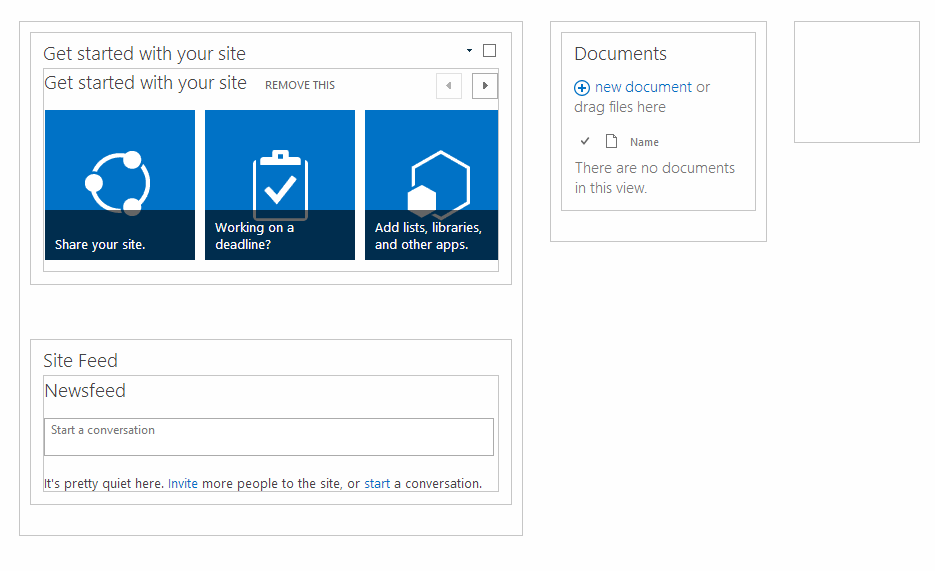
teamsite1

Testing the effect of the publishing feature

Now that the publishing feature was activated, I wanted to see what effect it had.

  • Site Actions -> Add a Page creates a page in the SitePages library
  • The homepage for the site is still /SitePages/Home.aspx

Conclusion: simply turning on the features made no change, besides creating a new Pages library.

Changing the homepage

SharePoint allows you to set a different page in your library to be the “homepage” – this is the page that SharePoint sends you to when going to the basic URL. Currently, if using “/test1”, the browser will go to /test1/SitePages/Home.aspx.

I created a new page in the Pages publishing library and set that to the Homepage.

teamsite2

Now, when going to /test1, the browser redirected me to /test1/Pages/test.aspx.

Conclusion: you can change the default homepage from a page in the the SitePages to a page in the Pages library.

Changing the Add a Page type

On a team site, when using the Add a Page option via the Site Settings, you will create a new page in the Site Pages library. Even after enabling the publishing feature, the Add a Page option still creates a new page in the Site Pages library.

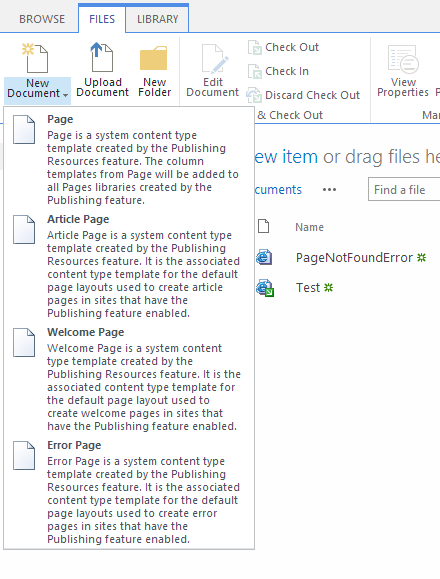
To create a page in the Pages library, you will need to go to the Pages library and do it via the ribbon.

teamsite3

Conclusions 

It is certainly possible to turn on the publishing feature on a team site. I did not encounter any strange issues.

However, I still think that it is too confusing for users and unnecessary: simply make a good decision on which site template to use and stick to it!

Tips for logging into multiple SharePoint Online environments

Updated 1 March 2014 to include ADFS authentication with Firefox.

I support multiple clients daily with their SharePoint Online environment – plus, our own intranet at Connecta runs on SharePoint Online.  SharePoint Online tends to keep your session, which means I’m constantly logging in and out of sites. These are the tips that I’ve collected to help make this a bit easier.

LastPass as a URL and password manager

Anyone who uses the internet has multiple passwords: email, Facebook, etc. At least, they shouldn’t all be the same password. Add in clients, who often tend to give me multiple users to work with (i.e. an admin user and a normal user, plus maybe a different Active Directory user) and it becomes difficult to keep track of these passwords. I could save them in OneNote, but that isn’t particularly secure – nor does it lend a professional impression to your clients. Conclusion: some sort of password management is necessary.

keepass_256x256I used to use Keepass, synced between multiple computers by saving the database file in Dropbox.  It’s a great, simple little tool that runs on plenty of platforms and is secure. I could save usernames, passwords, URLs and have it remind me when a password was about to expire. I fell in love with the search functionality – why remember what folder something was in when I could search? When I left one of my last jobs, I simply exported the Keepass database related to work and gave it to IT support. I had some issues getting it to integrate into the browser, though, so eventually went looking for a different solution.

lastpass_large_logo_050611A few years ago, I switched to LastPass and haven’t looked back since. LastPass is a cloud based service which allows you to save your passwords. It supports two-step authentication and a bunch of other methods which are enough to make me feel that my (and my clients’!) passwords are safe. There are good plugins for Internet Explorer and Google Chrome, as well as an Android app. I keep everything in here: the only passwords I still manually type have are my Active Directory account for work and the LastPass master password.

Some of the reasons I love LastPass:

  • It generates all of my passwords for me. It’s fast, it’s easy and it helps keep my accounts secure. I usually have it set to 10 characters and allow special characters, but it’s a question of changing a few check boxes around to get a different type of password, depending on the requirements.
  • It works on all the different platforms I use: Internet Explorer, Chrome, Android, etc.
  • As cloud solution, it keeps my passwords synced between all of my devices – I can access the latest version from anywhere.
  • It can handle ADFS authentication (in select browsers).

My only gripe with LastPass is actually with Google Chrome on Android – Chrome doesn’t allow plugins and therefore we can’t use LastPass to auto-fill passwords in that browser. However, I do quite like the Dolphin browser, so it’s all good.

I keep all of my client passwords in LastPass. Since SharePoint is my specialty  a lot of these passwords are for websites. However, they’re often also Active Directory users for remote access, door codes, etc – I might not be able to automatically fill these in, but I always know where they are and that they’re secure.

When I want to open a client’s site, I have a number of options, depending on the browser I’m using:

  • Type in the URL from memory – this tends to happen a lot!
  • Chrome and IE – open the LastPass vault plugin, search for the client’s name and click on the entry
  • Chrome: type “lp” and then “tab” and then start typing the client’s name – it will automatically supply the URL for me

Once I’m there, I’m usually looking at Microsoft’s sign-in page, usually with the username that I used last:
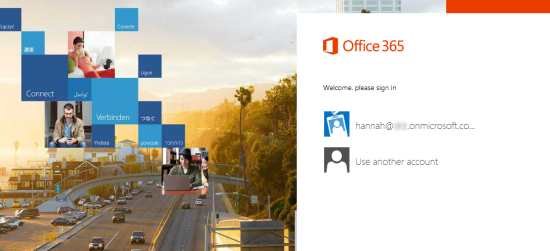
online1

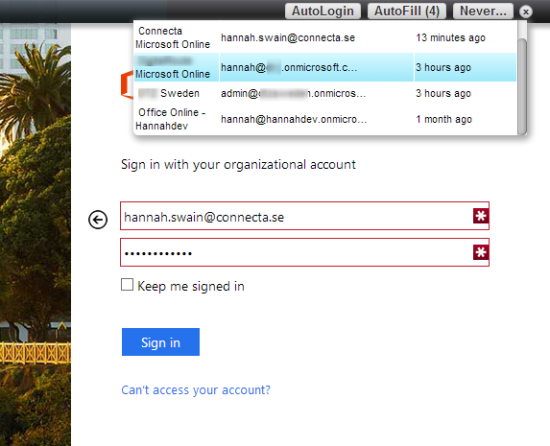
At this point, I choose “Use another account” and then use LastPass to fill in the information for the account I need – either by using the toolbar in Chrome or right-clicking in the form in Internet Explorer:
online2

I choose the account I want, the information is automatically filled into the form and I click “Sign in”.

This saves me so much time in the course of a day.

Browser sessions
online3Sometimes I need to have multiple environments open: a client has an ad hoc issue while I’m actually working on another environment or I need to look something up on our own intranet at the same time. It happens often.

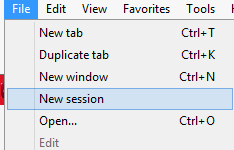
Internet Explorer keeps your session across tabs, so you need to force it to create a new session. To do this, you need to go to File -> New Session – there is no keyboard shortcut that I know of.

This does not always seem to be stable: sometimes the sessions still seem to get mixed up. Also, LastPass does not seem to understand IE sessions.

Use multiple browsers

11111I don’t use the multiple sessions on IE all that often, simply because I get confused which window belonged to which client.

It can be useful to run one environment in IE and another in Chrome. It makes it obvious which environment belongs to which project that is open and it doesn’t ever get the sessions mixed up.

According to Microsoft’s browser support page for SharePoint Online, Google Chrome, Mozilla Firefox and Opera are all supported. I have noticed some issues with things like dragging webparts and Open in Explorer, though.

My best tip: remember which browser you’re using to save yourself testing headache – like the day I couldn’t figure out why Open in Explorer wouldn’t work, then realized I was using Chrome.

ADFS authentication

According to Mats Sørensen’s blog post “How Does ADFS Work With Office 365?“:

You might know something about Microsoft Active Directory Federation Service (AD FS) or maybe not, but basically it’s a Microsoft feature that enables SSO (Single Sign-On) between two domains/forest without using a normal domain trust relationship as many people might know it.

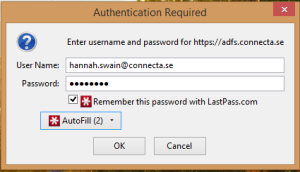
For those of us who do not configure these kinds of things, ADFS is when the Office 365 login screen sends you on to another authentication provider and pops up a dialogue to allow you to login (again):
firefox_adfs


Note that you can also select multiple usernames, which is great when you’re testing multiple users or permissions.

When working with SharePoint environments which use ADFS authentication, use Firefox if you want to use LastPass to authenticate! I now use Firefox a lot of the time when facing this authentication.

Conclusions

These are the methods I use to help make it easier to maintain multiple environments.

If you have any tips, please share them in the comments!

Lessons learned: branding SharePoint 2013 team sites

I was asked to do a simple branding for a client as part of a SharePoint Online/2013 project. I jumped into it thinking it would be like the difference between MOSS 2007 and SharePoint 2010 – some small changes, but generally the same. It wasn’t – though there are some neat new things.

Background

The premise for this project was fairly simple: the client needed a central administration site with sub-sites for each project.

branding1

The biggest caveat on this project was that the project sites would be created from a SharePoint site template (“save site as template”), which is notoriously complicated combined with team sites and branding.

Change the look

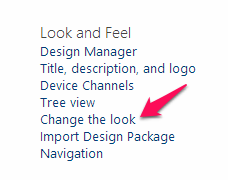
There are a few ways to change the design package or “look” in SharePoint 2013.

branding2branding3

This brings you into a screen where you can choose from a number of default Looks or edit your current Look:

branding7

When you choose a look, you end up on the configuration screen for that Look where you can change the background image, the colors (theme/color palette), site layout (master page) or fonts (font scheme). You can see a live update in the middle of the screen:

branding4

This is great for end-users: it allows them to have far more control over their environment and to customise things to fit their own needs. It allows the users to use pieces of a branding solution.  It also allows branders to supply them with better options, i.e. by creating color palettes which the end users can then choose.

Composed looks

The “Change the look” allows the user to select a premade template and then change the options that create the look. You can also create a Composed look for your environment that includes all of the elements. The user can select it and then have everything automatically look correct.

You can find the Composed looks on each site settings, under Web Designer Galleries:

branding5

Composed looks is nothing more than a list with a number of different columns which point to different resources. If you edit an item in the list, you will be able to edit all of these different properties:

branding6

Creating a new Composed Look is easy; simply create a new item in this list. 

Note: the master page must be created via a HTML page, even if you don’t make any changes to it, before it will be available in a Composed Look. You will not be able to select the master page as a layout option in the Change the Look screen otherwise.

Composed Look elements

SharePoint 2013 has a number of design elements which are combined in the Composed Look:

Element Description Lessons learned
(HTML page) SharePoint 2013 creates master pages from HTML templates Make all of your changes here, if possible
Master page Created from the HTML – try and avoid editing the master page directly in SharePoint 2013 Is automatically created from the HTML page as soon as there is a new version of the HTML page
Theme Also called color palette, is responsible for colors Download a pre-existing template and update as needed. Choose one main color to replace, then replace it with “replace” in an editor – this will keep the coloring consistent. Just changing one color was enough to make a big impact for my client.
Background image Used for the background image on pages, automatically repeats SharePoint assigns CSS transparency of 85% to this image – make sure that it is fairly dark, otherwise, you will not be able to see it
Font scheme Helps to control all the different fonts in the environment

I was very impressed with how easy it was to update things like the color palette – you need some basic branding knowledge and an understanding of check-in/check-out. That’s it, and changing these things can make your environment look very differently.

Branding inheritance with team sites

I really wanted to reuse the same master page on each of the different team sites; I had put the Open in Explorer link from my Using the “Open in Explorer” link on SharePoint 2013 mini project right about the left menu.

Here’s what I learned while trying to accomplish that:

  • Edit the HTML master file for the layout, not the master page. If you only edit the master page, for some reason it is impossible to select this master page as a layout in Change the Look. Plus, there is no reason not to – SharePoint updates the master page with the changes in the HTML on the fly.
  • Master pages are not shared over different sites (without the publishing feature) – the master page that I created for the client was not available on one of their project sites. I also edited one of the default master pages – the change was not visible on a subsite. This means that the master page changes are limited to a site scope, not site collection.
  • Color palettes are available over different sites. I did not test font palettes.
  • If you save a site as a template, the same Look is applied to the new sites created from that template. In my project, this meant that the color palette and the background are automatically applied to new sites.

Resources

Benjamin Niaulin: Step by Step: Create a SharePoint 2013 Composed Look